

How to use AION 2 character presets from any region
AION2 Lookbook lets you import AION 2 character presets from any region into an appearance slot. Preview a preset on your character, then customize it before applying.
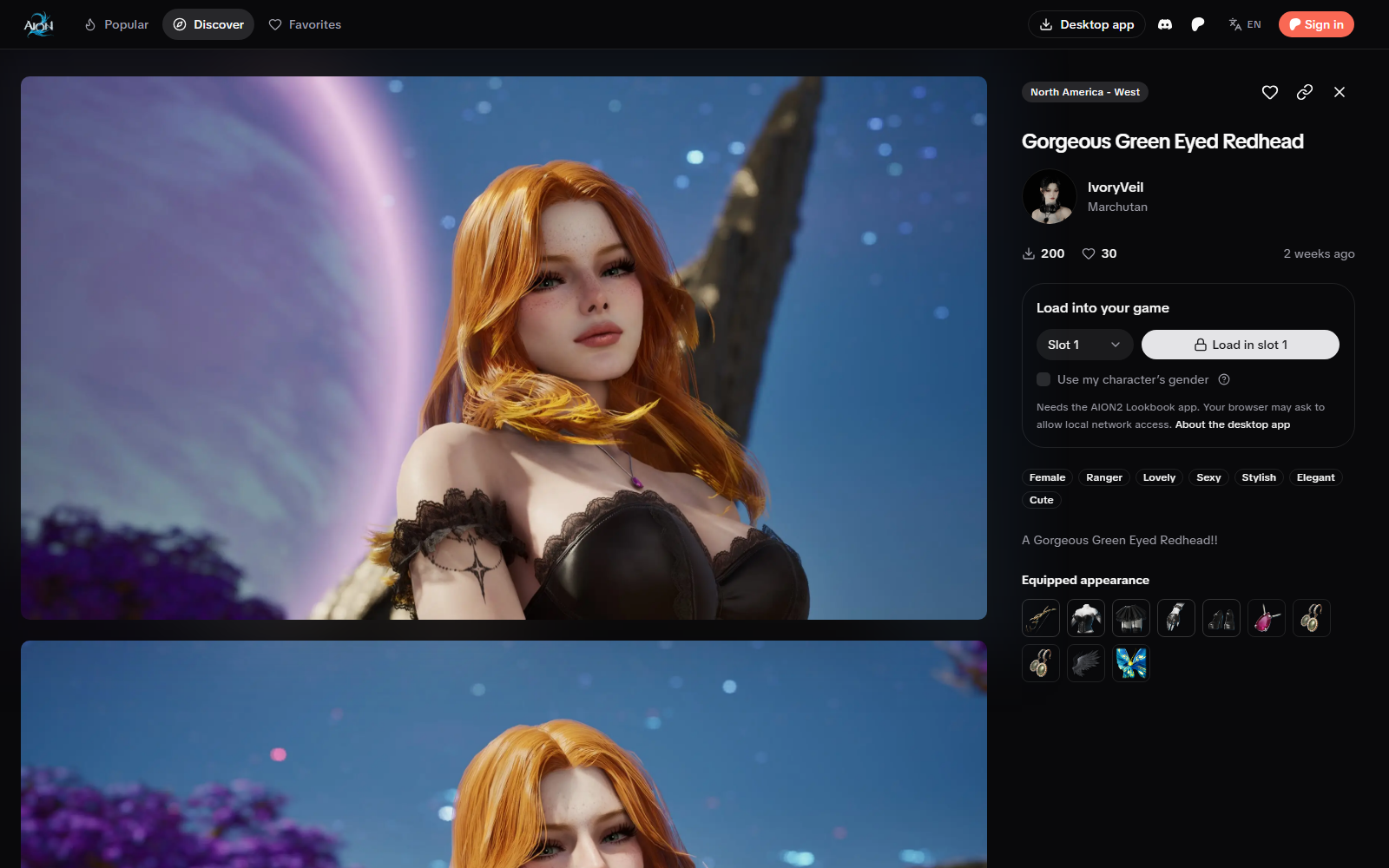
This example uses Gorgeous Green Eyed Redhead by IvoryVeil, published in North America–West and loaded into a character in Europe.
1. Find a preset from another region
Open Popular and choose a source region. Select All time to browse the most downloaded looks from that region. The website’s region selector changes which looks you browse; your character stays in its own game region.
For this example, choose North America–West and open IvoryVeil’s preset. You can also open the example look directly.
Character presets contain appearance settings such as face, hair and body shape. Clothing shown in a creator’s photos is separate; loading the preset does not unlock that outfit.
Browse Korean character presets or Taiwanese presets in all-time Popular, then follow the same steps below. This example’s screenshots show a North America–West preset loaded into Europe.
On a Global server and after a Korean or Taiwanese look? Read How to use Korean and Taiwanese AION 2 presets on Global.
2. Load it into an appearance slot
In AION2, open Customization → Manage Appearance. On the preset’s Lookbook page, choose an appearance slot under Load into your game. This example uses slot 1.
Press Load in slot 1. Allow local network access if the browser asks, so the website can communicate with the desktop app on this PC.
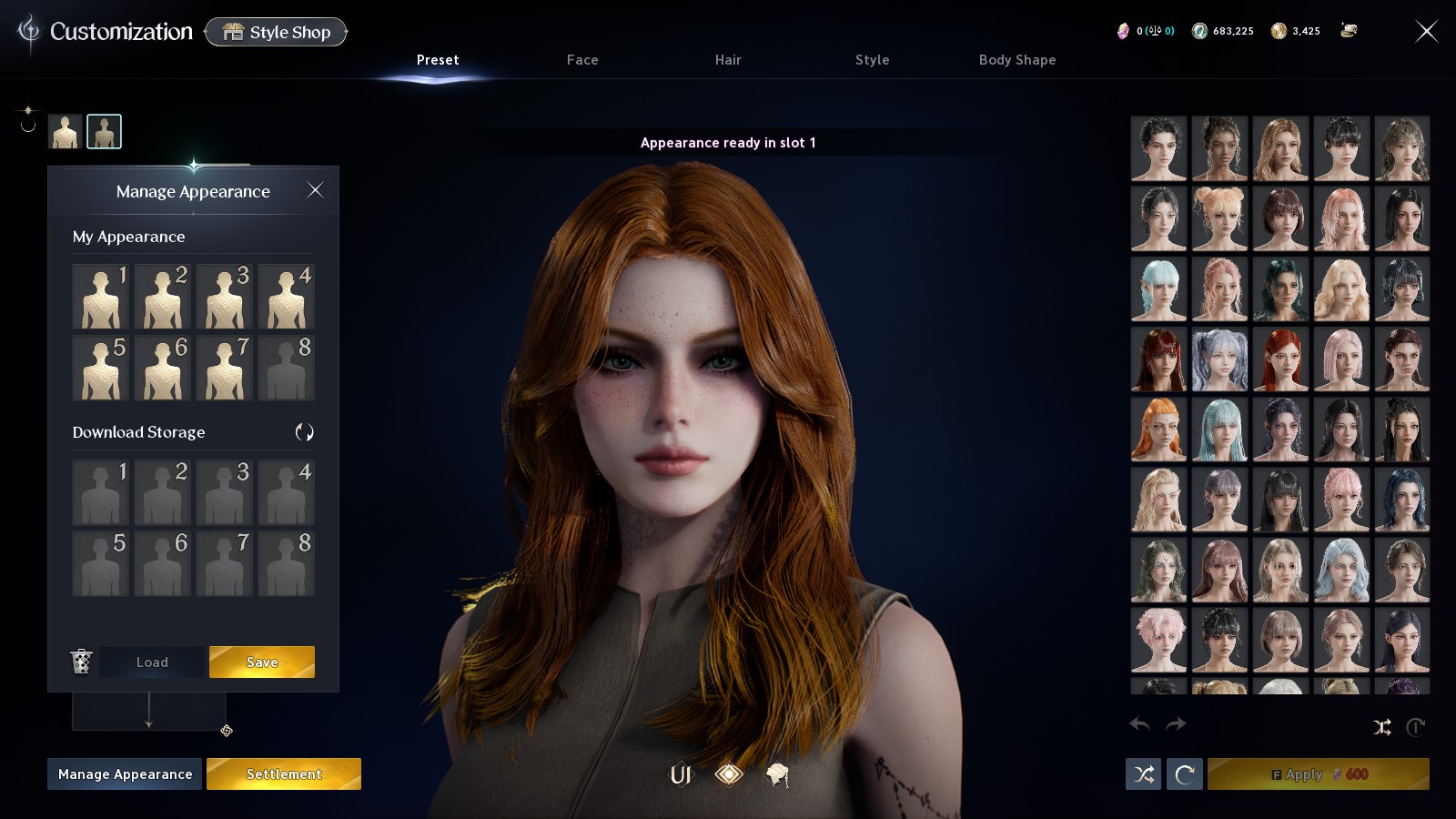
In My Appearance, select the same slot and press Load to preview it if the look has not already appeared. In the screenshot below, the imported look is visible on the European character, with Appearance ready in slot 1 above it.
3. Customize the imported look
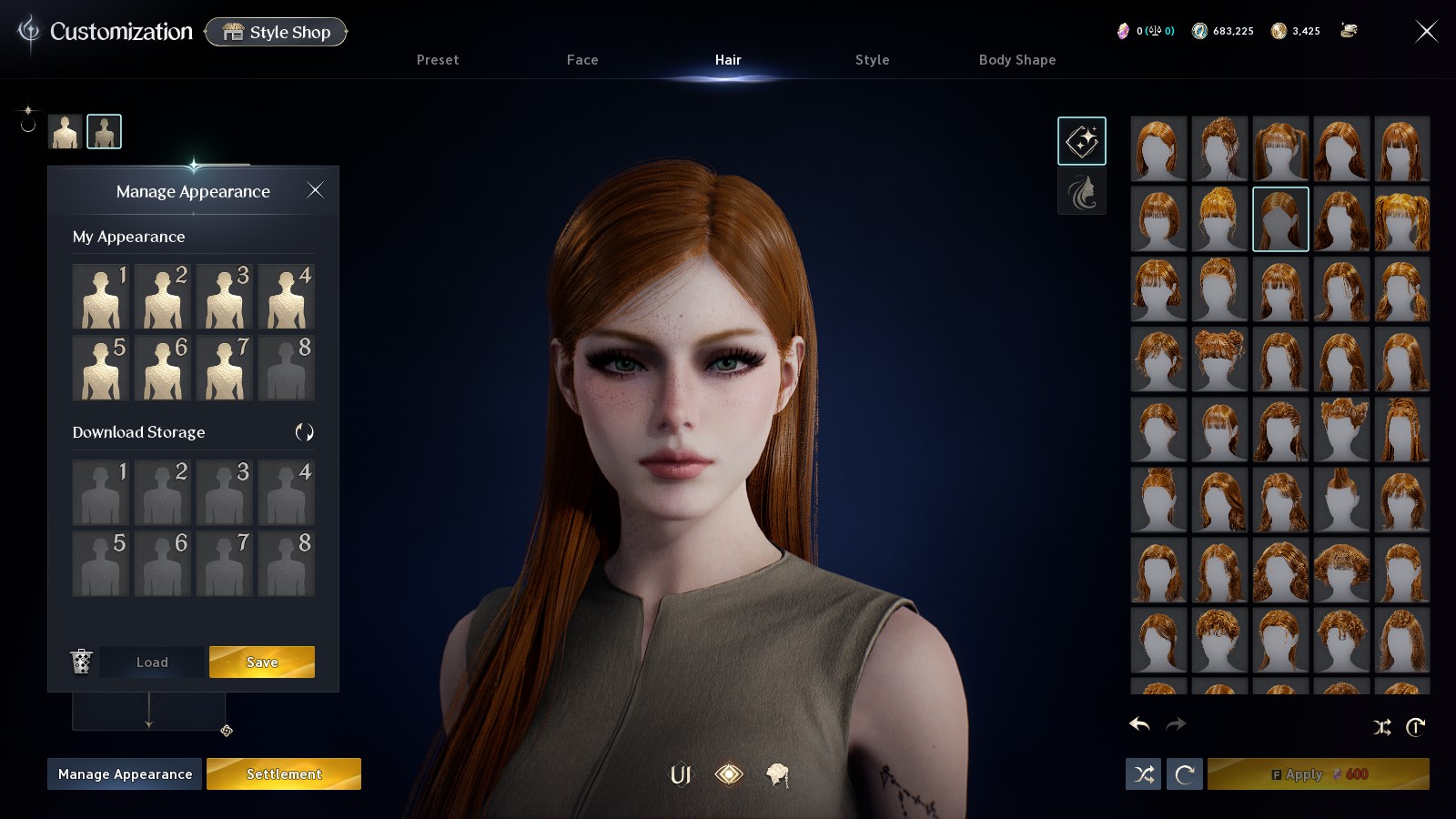
Use the game’s Face, Hair, Style and Body Shape tabs to edit the imported preset. The example below keeps the imported face and changes the hairstyle in the Hair tab.
4. Save and apply when you are ready
Loading previews a look without overwriting your saved preset. Save stores the edited preset in My Appearance. Apply changes your character’s appearance; check the displayed cost before confirming. Both actions remain manual. Premium does not cover in-game fees or unlock paid content.
How do I download AION 2 character presets?
With Lookbook, the Windows app loads the selected preset directly into an in-game appearance slot. There is no separate preset file to manage. Download the Lookbook desktop app, choose a look, and follow the steps above to load and customize it. Loading requires a Premium membership.
If the look does not load
Check that the desktop app is running, the website is signed in to the Premium account, and Manage Appearance is open in the game. For connection issues and ExitLag or VPN settings, see the troubleshooting section.